

Add a field in the form
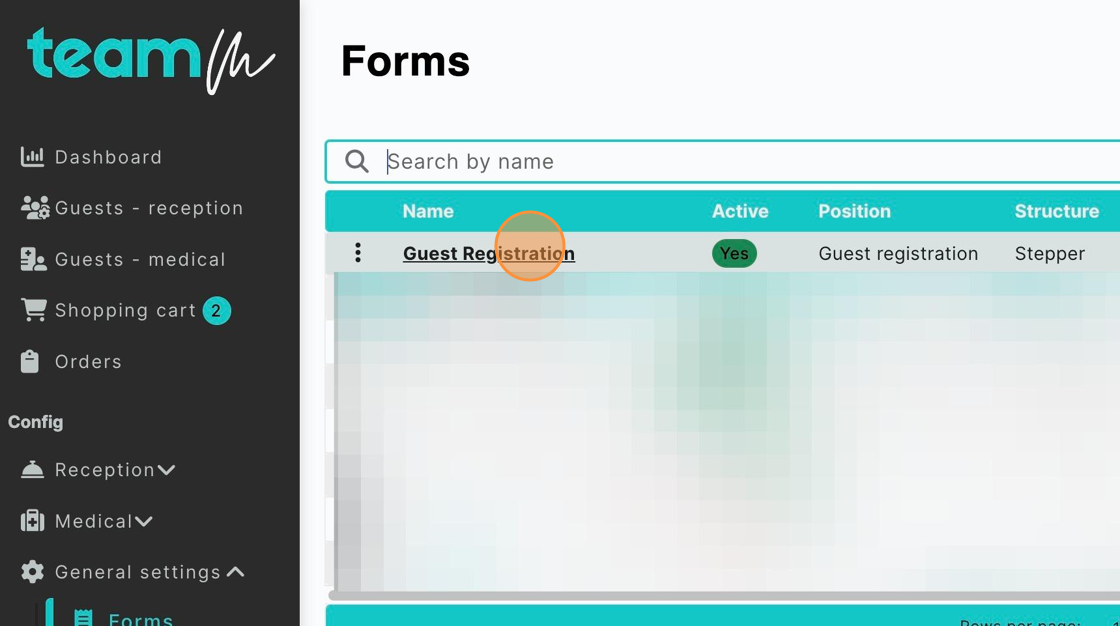
1. Click “Forms”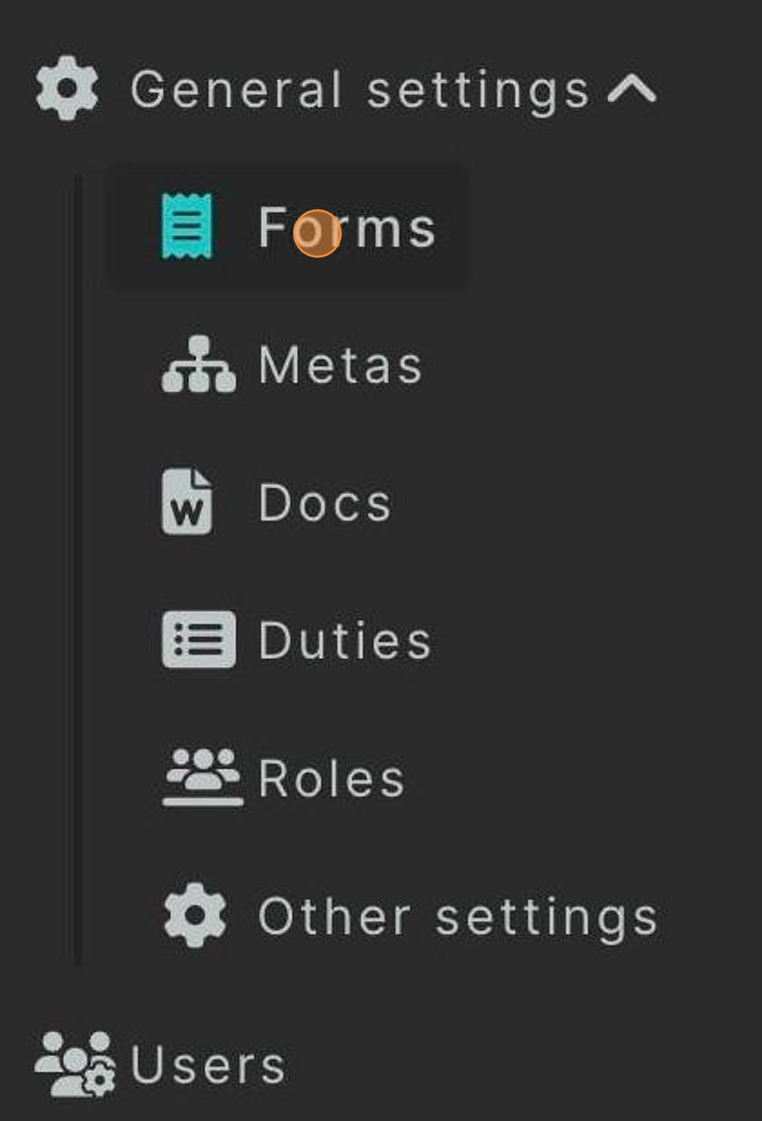 2. Click the name of the form you want to edit
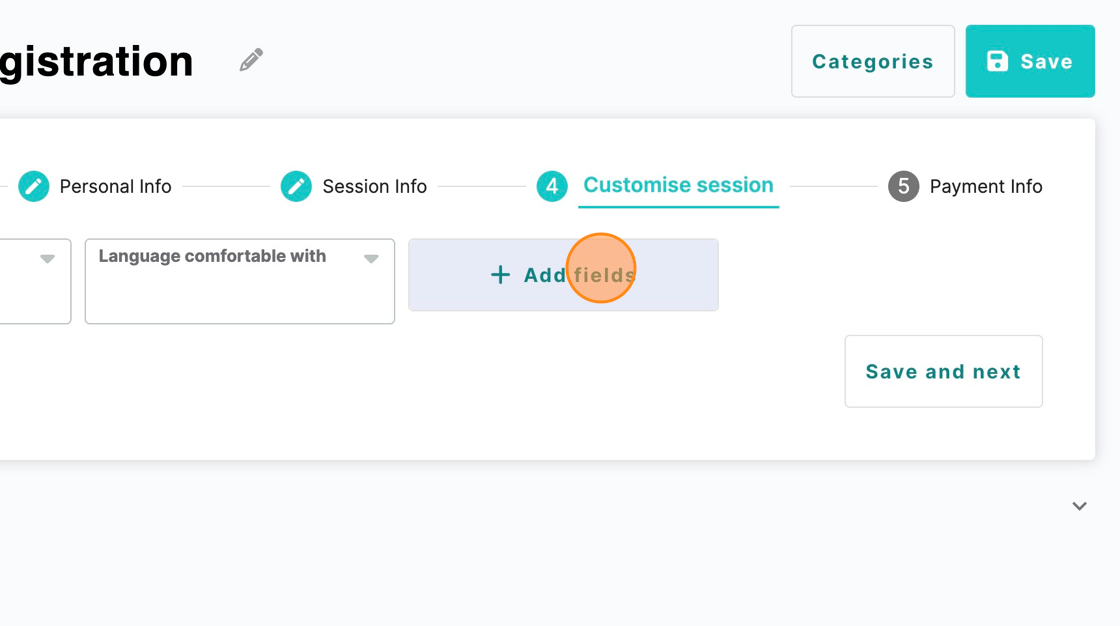
 3. Go where you want to add new field and click “Add fields”
Add new meta and field
4. Click “Add new meta and field”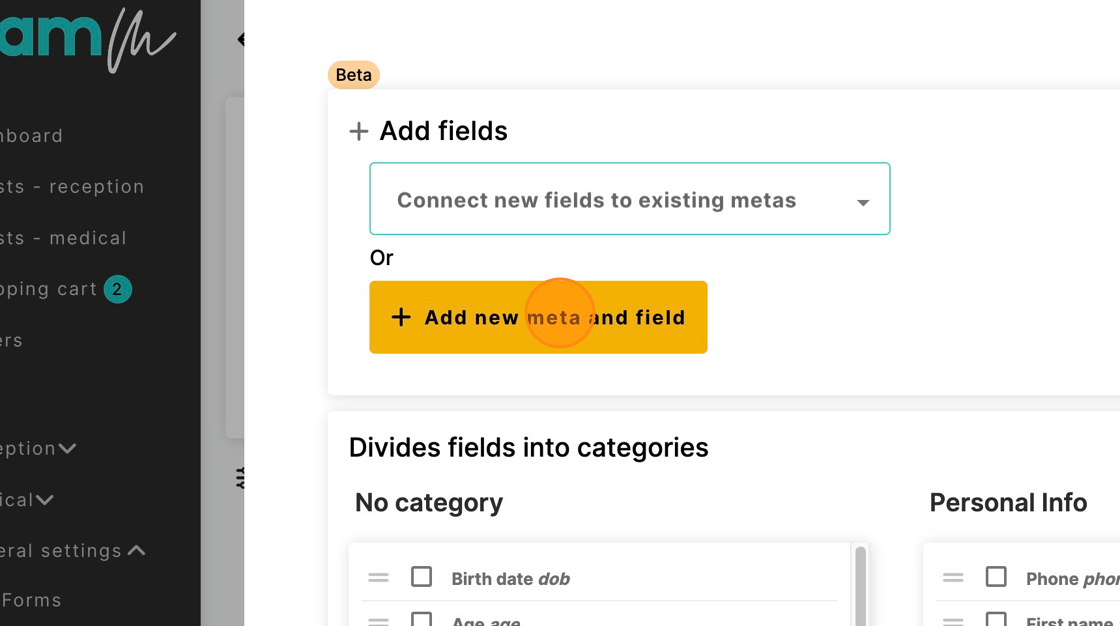 Alert: Before adding a new meta, take a look through the predefined metas, there might be already one for the kind of information you want to save.
5. Fill in the meta form
Alert: Before adding a new meta, take a look through the predefined metas, there might be already one for the kind of information you want to save.
5. Fill in the meta form
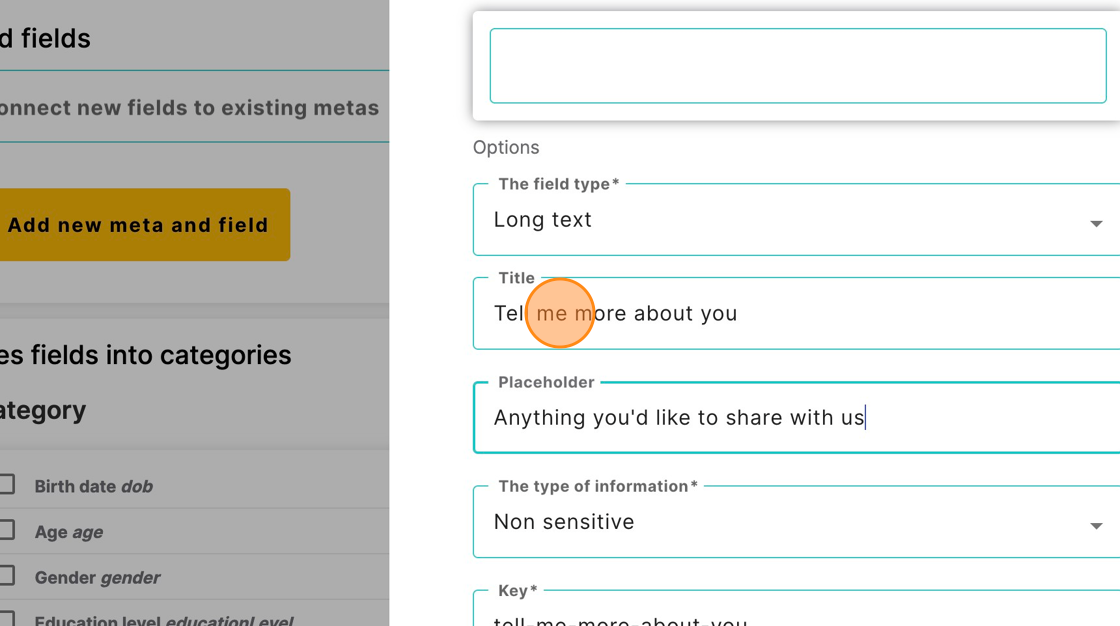 6. Set custom field settings
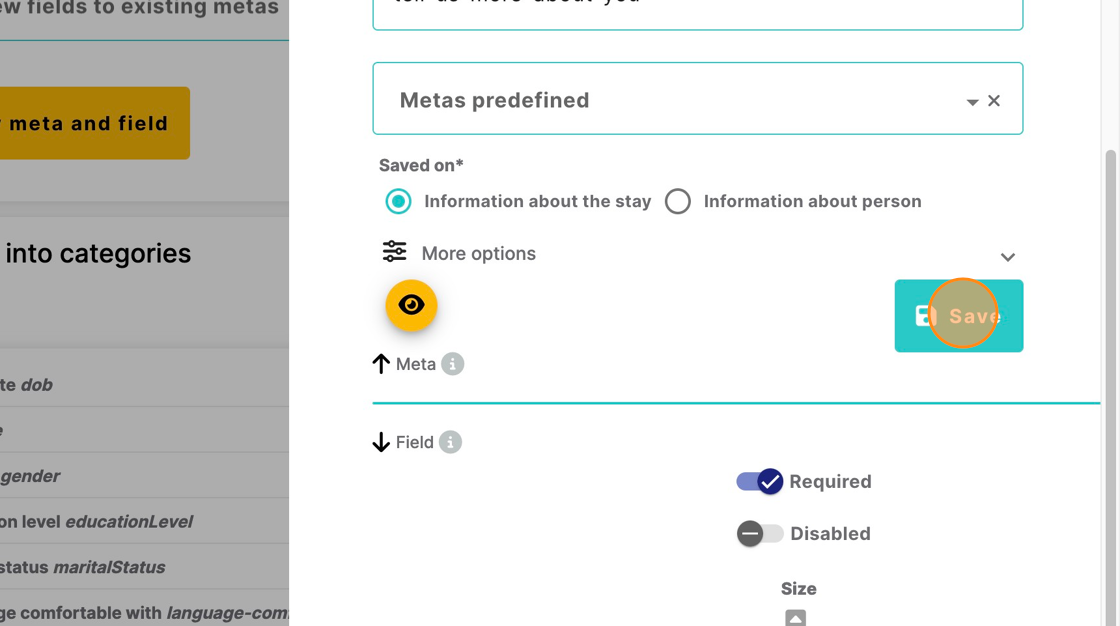
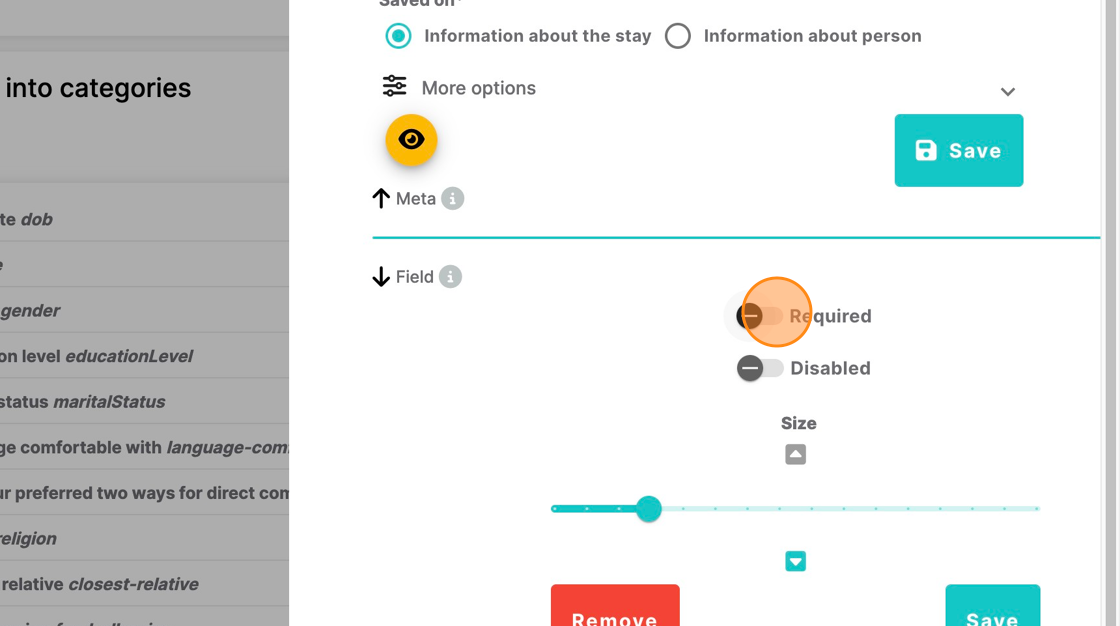 7. Click “Save”
 8. Adjust field size

Add field from existing meta
9. Click “Add fields”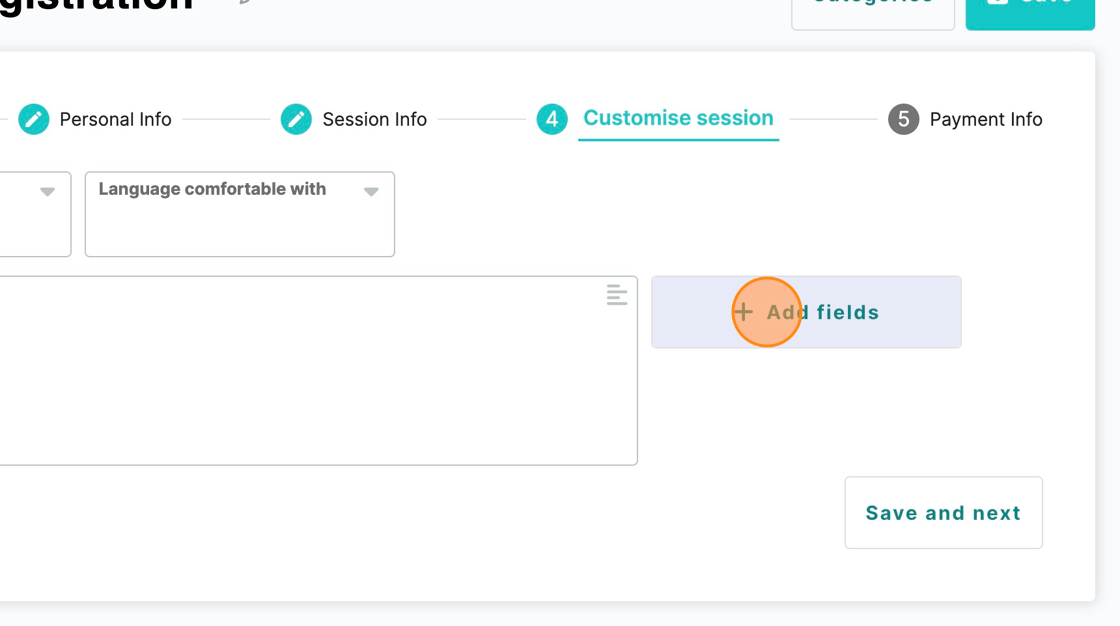 10. Click here.
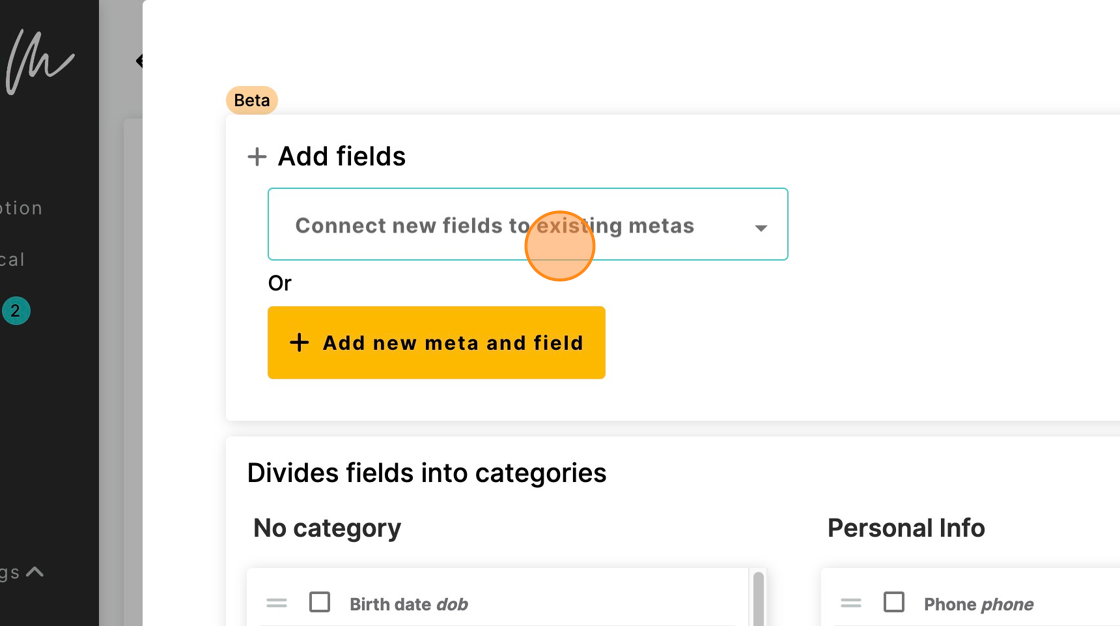 11. Search the existing metas and select them
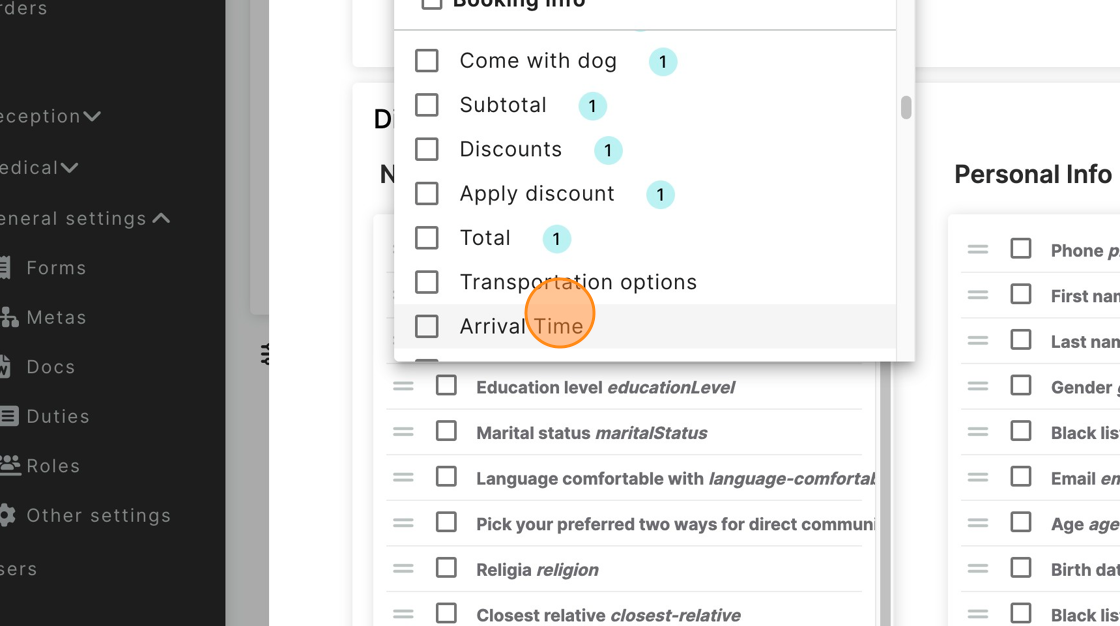 12. Click “Create fields for each selected meta”
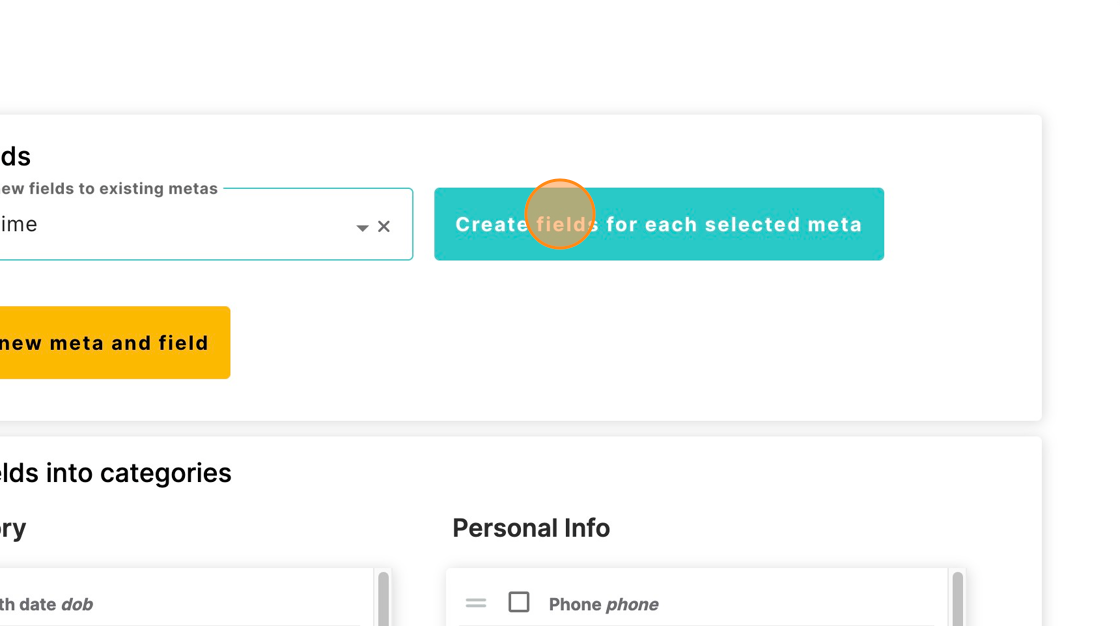
Create meta from predefined key
13. Click “Metas”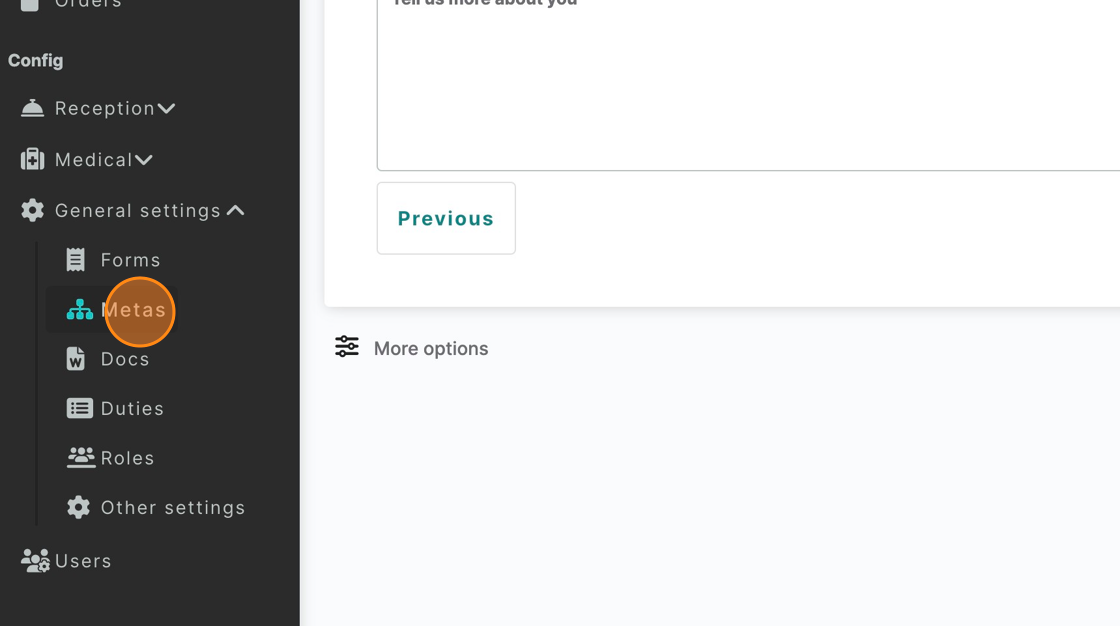 14. Click here.
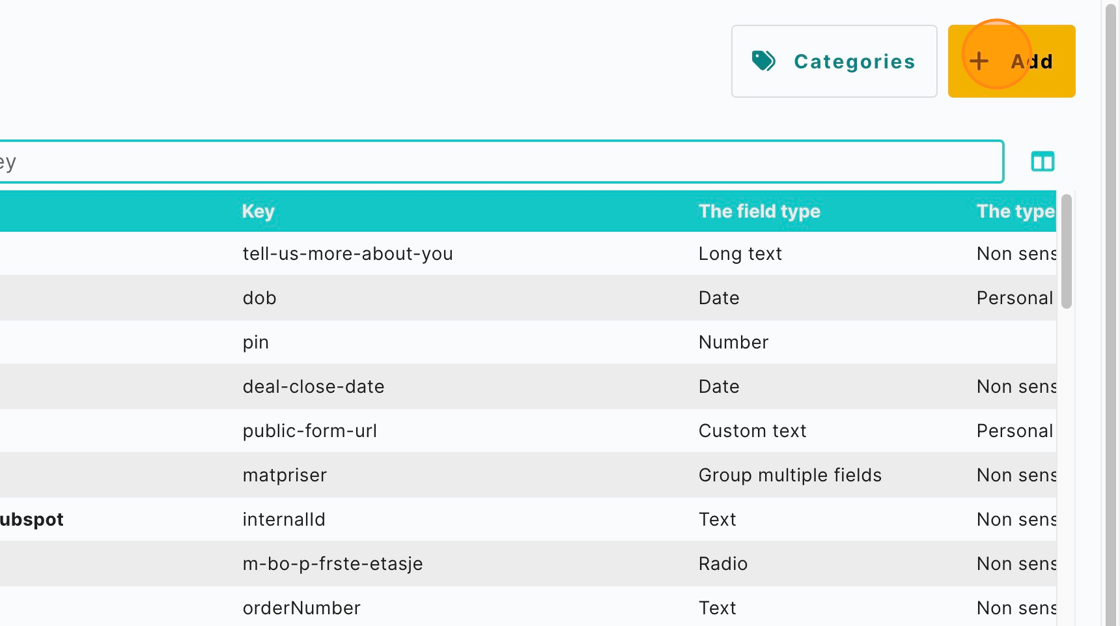 15. Click “Metas predefined”
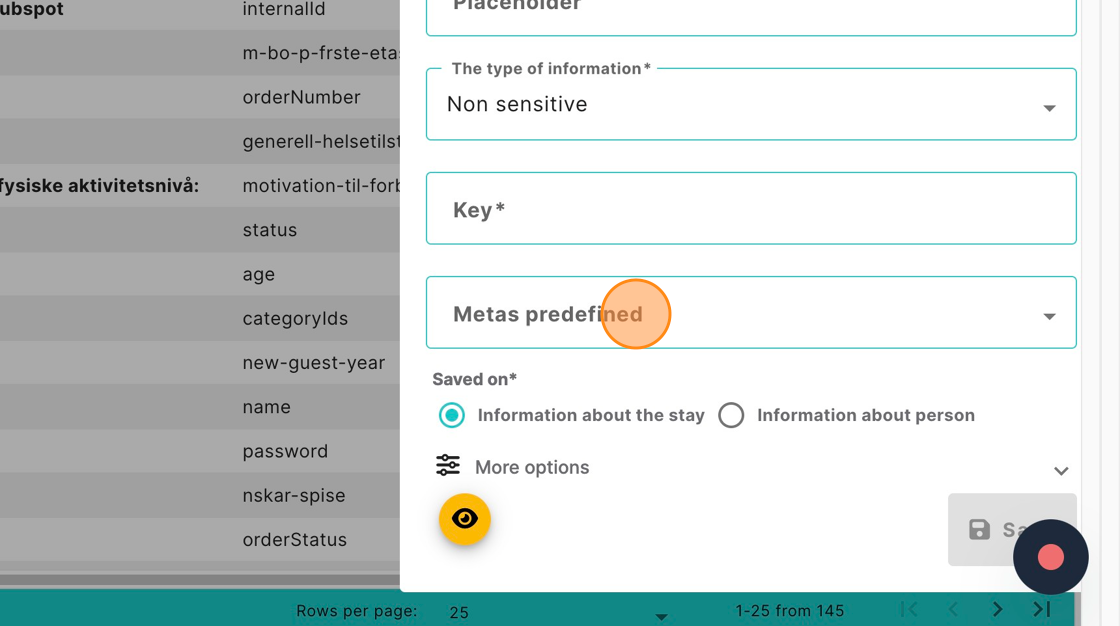 16. Search the key for the specific information you’re looking for
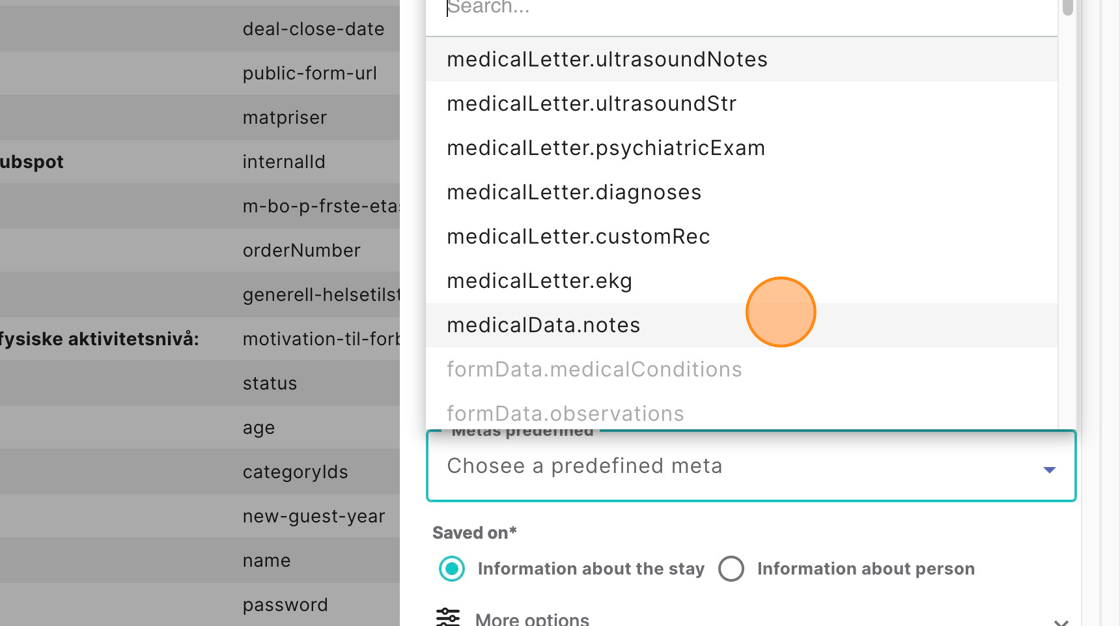 Tip: If you didn’t find it, you can create your own meta key.
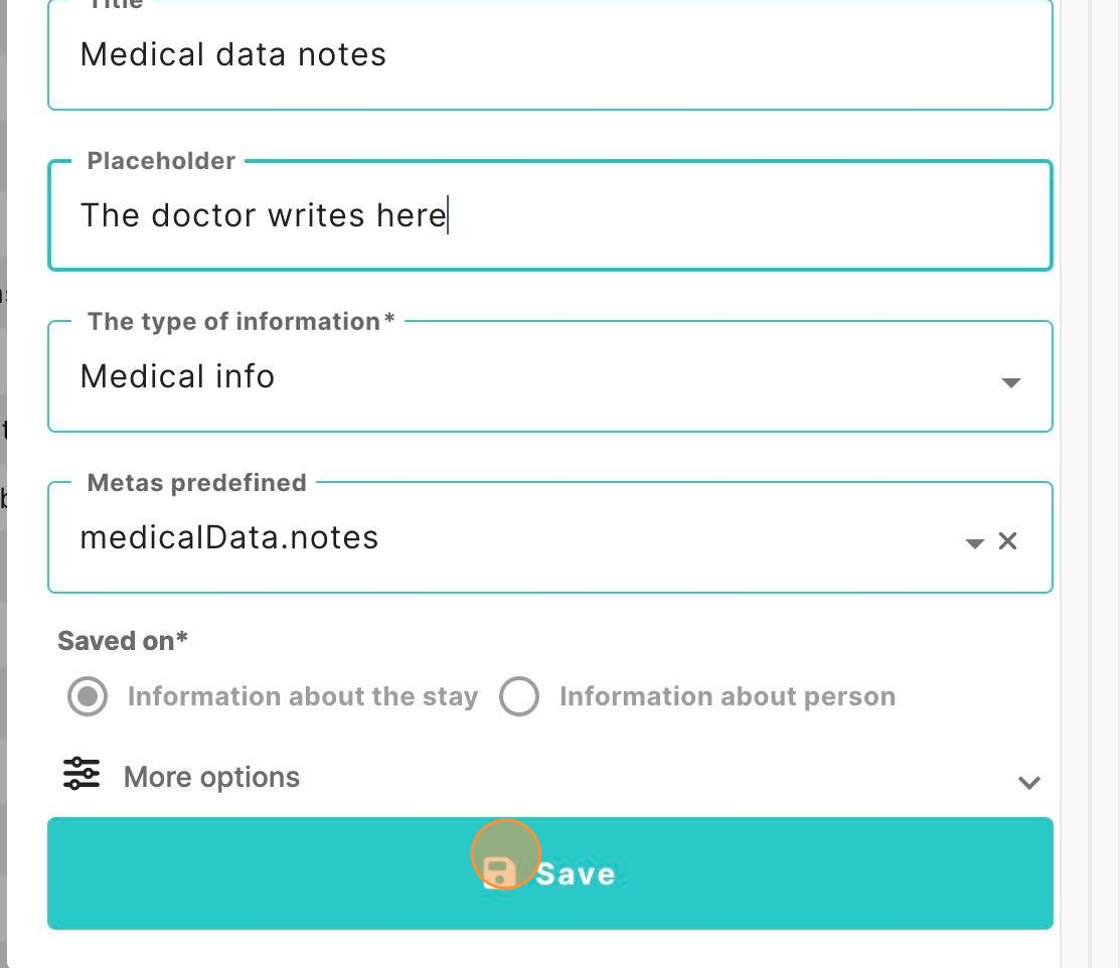
17. After setting the custom name and other settings, you can save it
Tip: If you didn’t find it, you can create your own meta key.
17. After setting the custom name and other settings, you can save it
See a meta as a table column
18. Click “Guests - medical / reception”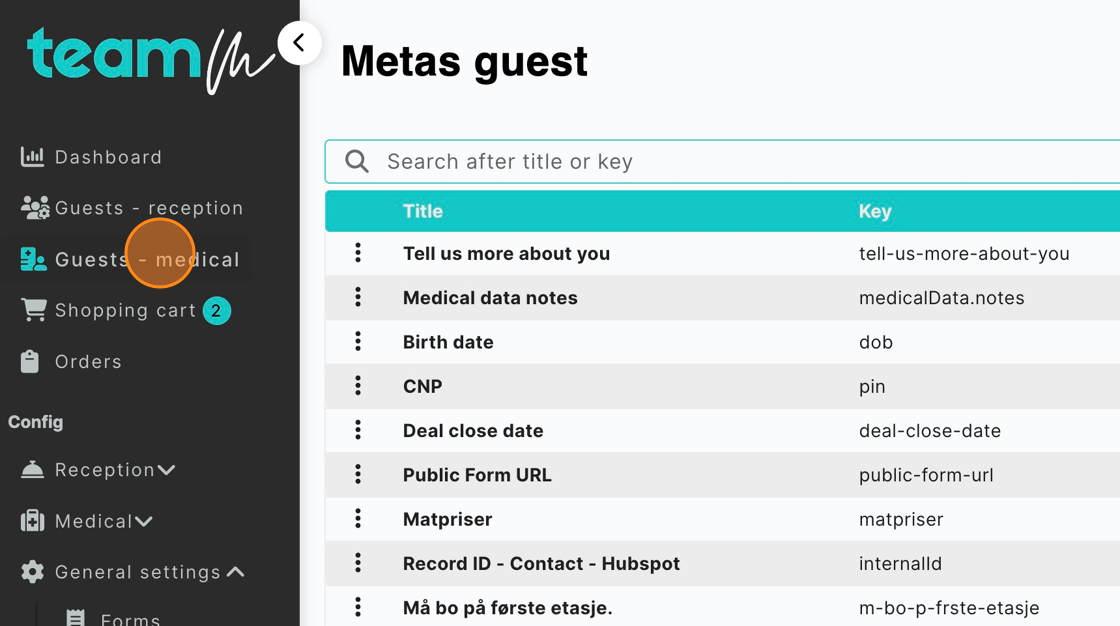 19. Click on the columns.
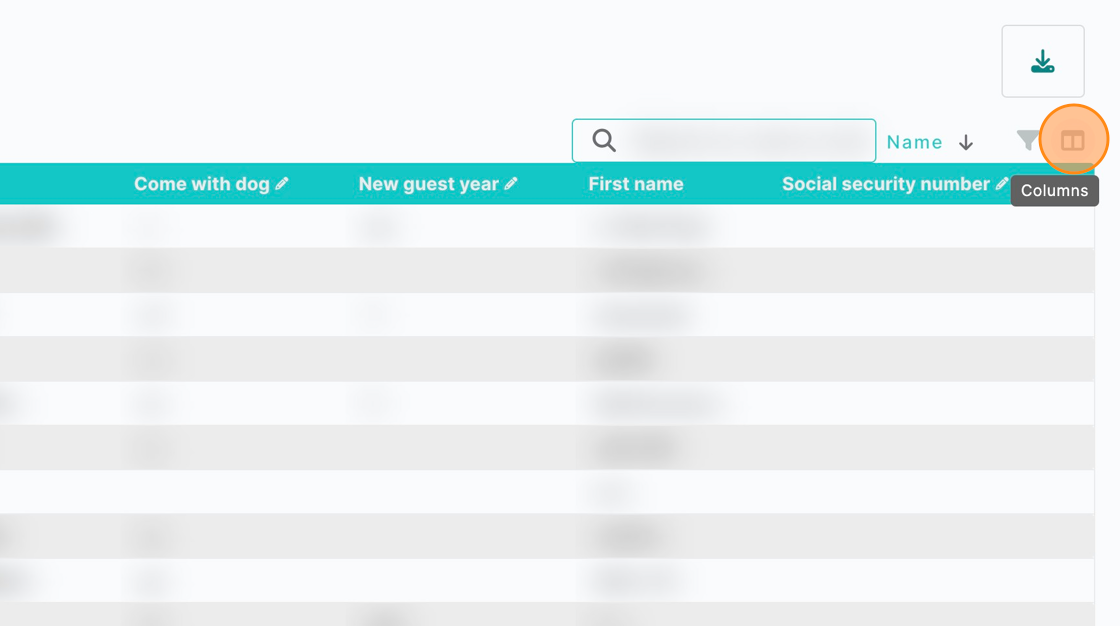 20. Search the meta that you added and press the eye, so it becomes visible.
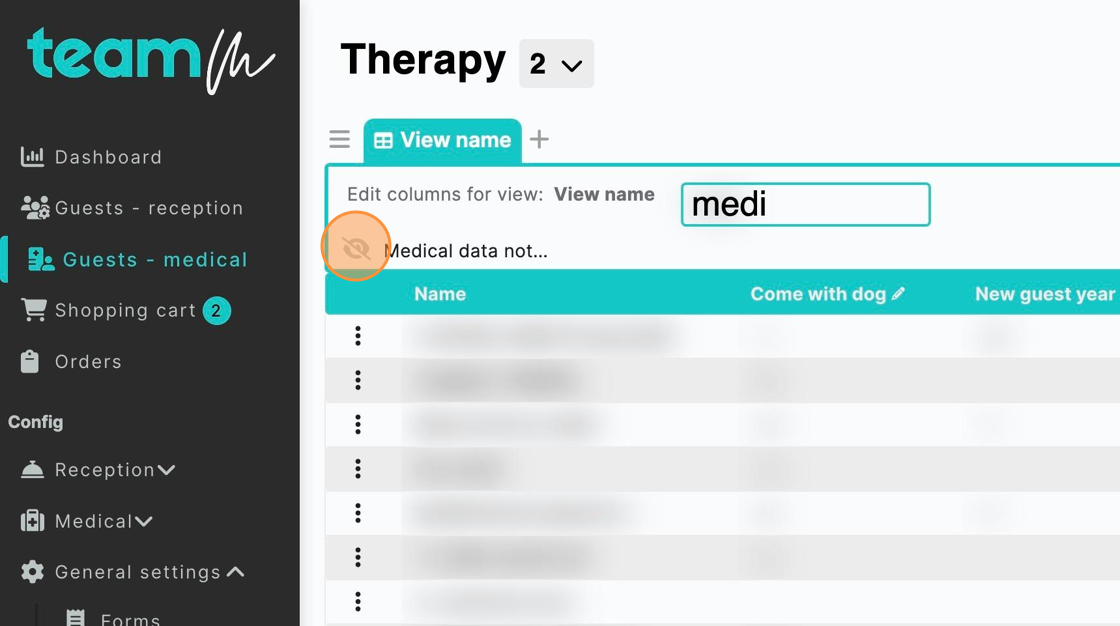 Tip: If you want it to be visible for other users, you need to go to duties and give them permission.
21. Click “Apply changes”
Tip: If you want it to be visible for other users, you need to go to duties and give them permission.
21. Click “Apply changes”
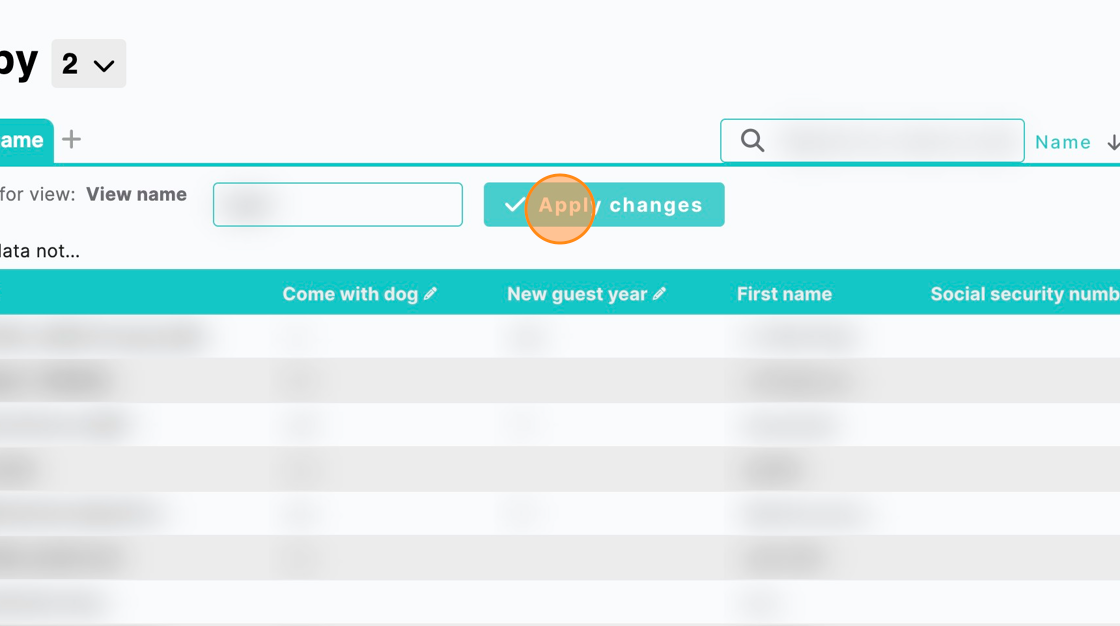 22. You should see a new column with the name you provided.
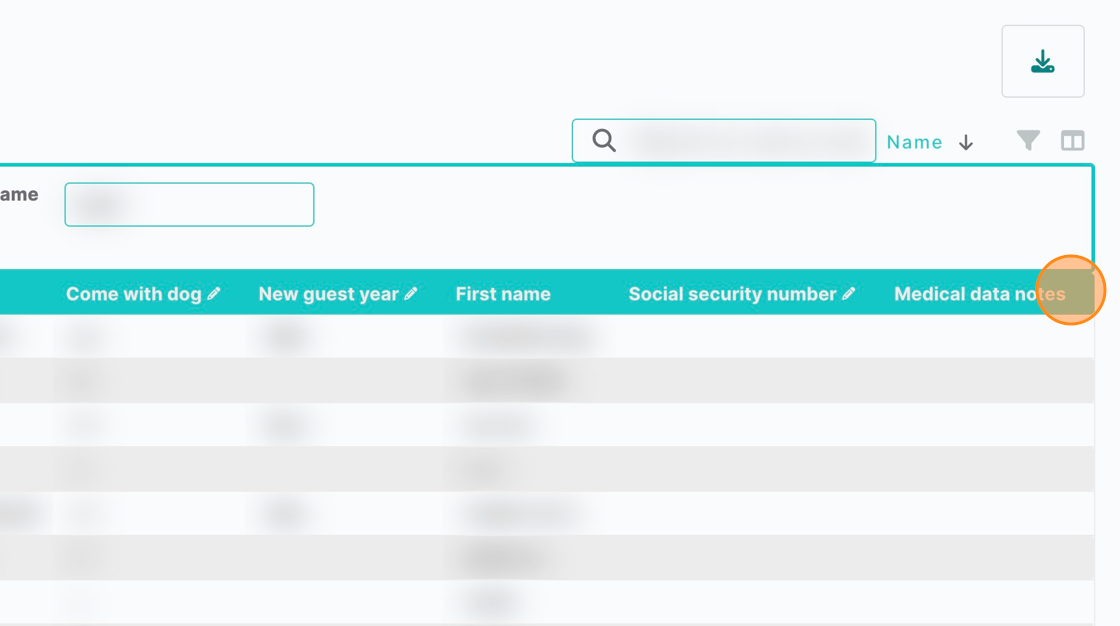 Tip: Depending on the case, you either need to create a field for this meta and input some data or it might be a readonly meta that already has values (ex: “weight”, “bookingId”).